Adding a new user
1. Navigate to ‘Customers’ from the side menu
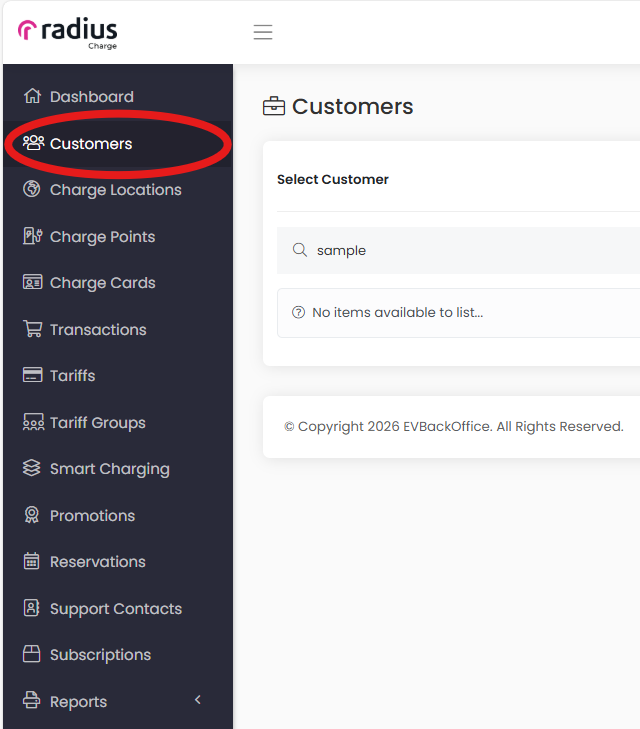
2. Click '+ Add Customer' in the top right corner

3. Add the customer details into the customer information screen
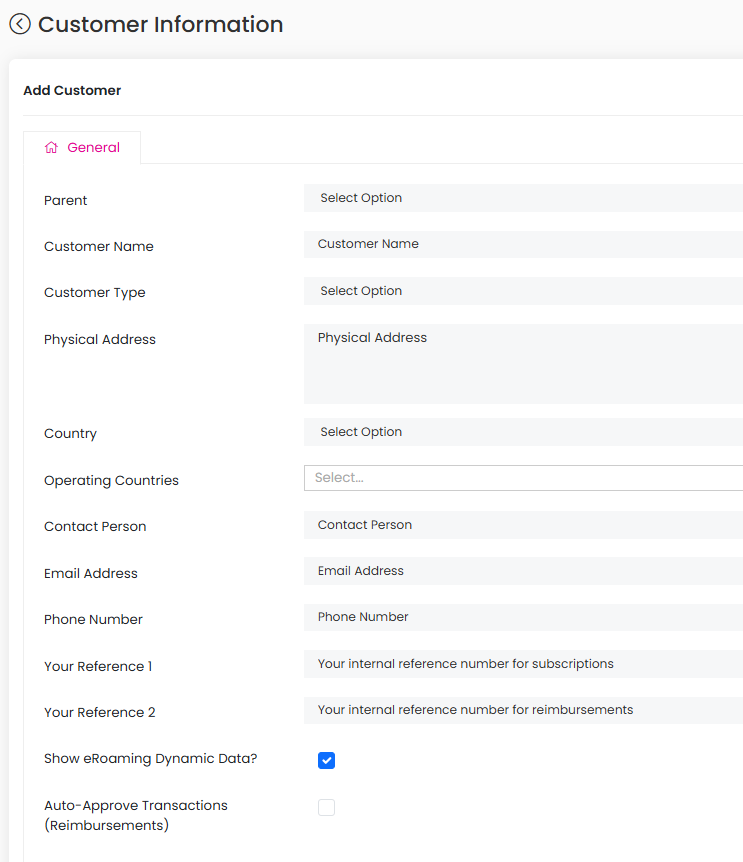
- Parent: <none>
- Customer name: add the users first and last name (This is what will show on any charge session reports)
- Physical address: add the full address of the user. Use a new line for street, city, county and postcode
- Country: select the country the customer resides
- Base Currency: Select GBP or relevant currency
- Contact person: add the users name
- Phone number: contact number for the user
- Email address: email address for the user
- Account Status: Active
- Account Type: Postpaid
4. Click 'Save' at the bottom
5. Navigate to the user you just created. You can do this by going into the 'Customer' tab, and searching for the customer you created
6. Click into that user, and it will bring up the details that were populated
7. Click "Users" tab
8. Click "Invite" and a pop up screen should populate

9. Insert relevant details to pop up screen
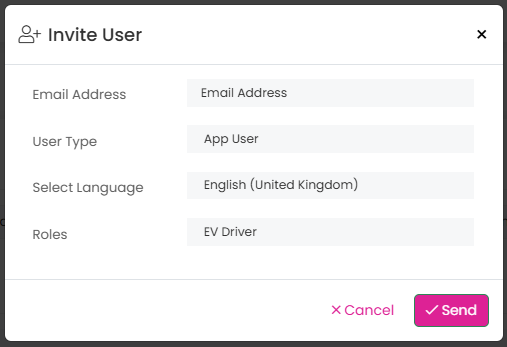
- Email: enter the email address the user will be using to access the Radius Charge app.
- User Type: App User (If admin level permissions required, select "Reseller")
- Language: Language the user wishes to have on their app
- Roles: EV Driver (If admin level permissions required, select "Administrator")
10. Click "Send"
11. Refresh the page and click on "Charge Cards" tab within the same user account.

12. A charge card should have populated under the visible number description as "Auto-Generated" with the users email under the description.
13. Navigate back to the main "Customers" tab on the left side selection
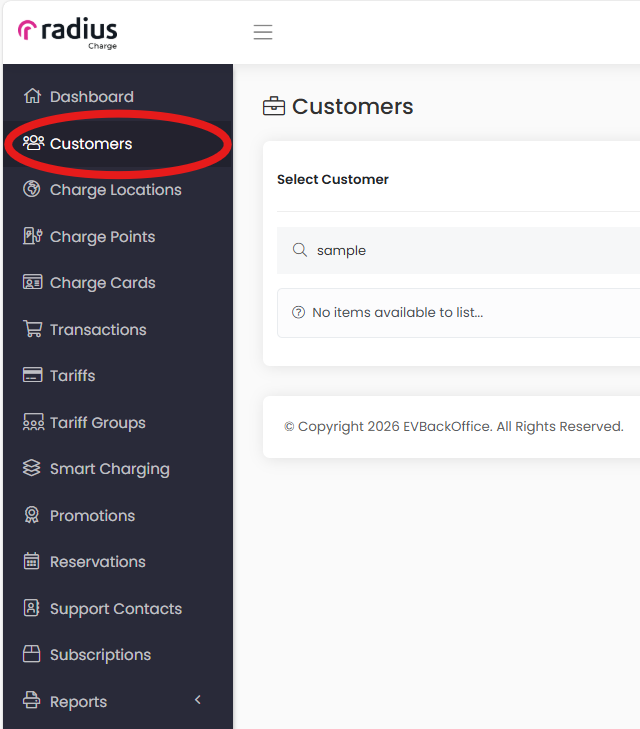
16. Select your company from the list
17. Click "Account linking" - a popup should generate

18. Insert relevant details
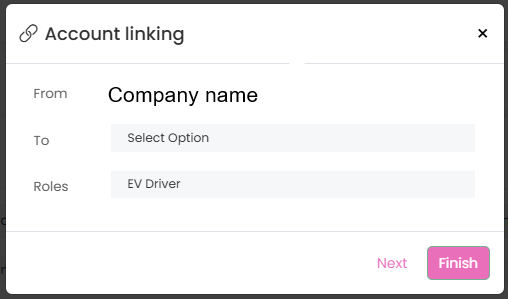
- From: Check it is the company name as this will link the user to the chargers.
- To: Select the user you have just created
- Roles: EV Driver (if admin level permissions required, select "Administrator"
19. Click "Finish"
20. The user should receive an email inviting them to download the Radius Charge app which will allow them access to use the charging units.
Was this article helpful?
That’s Great!
Thank you for your feedback
Sorry! We couldn't be helpful
Thank you for your feedback
Feedback sent
We appreciate your effort and will try to fix the article